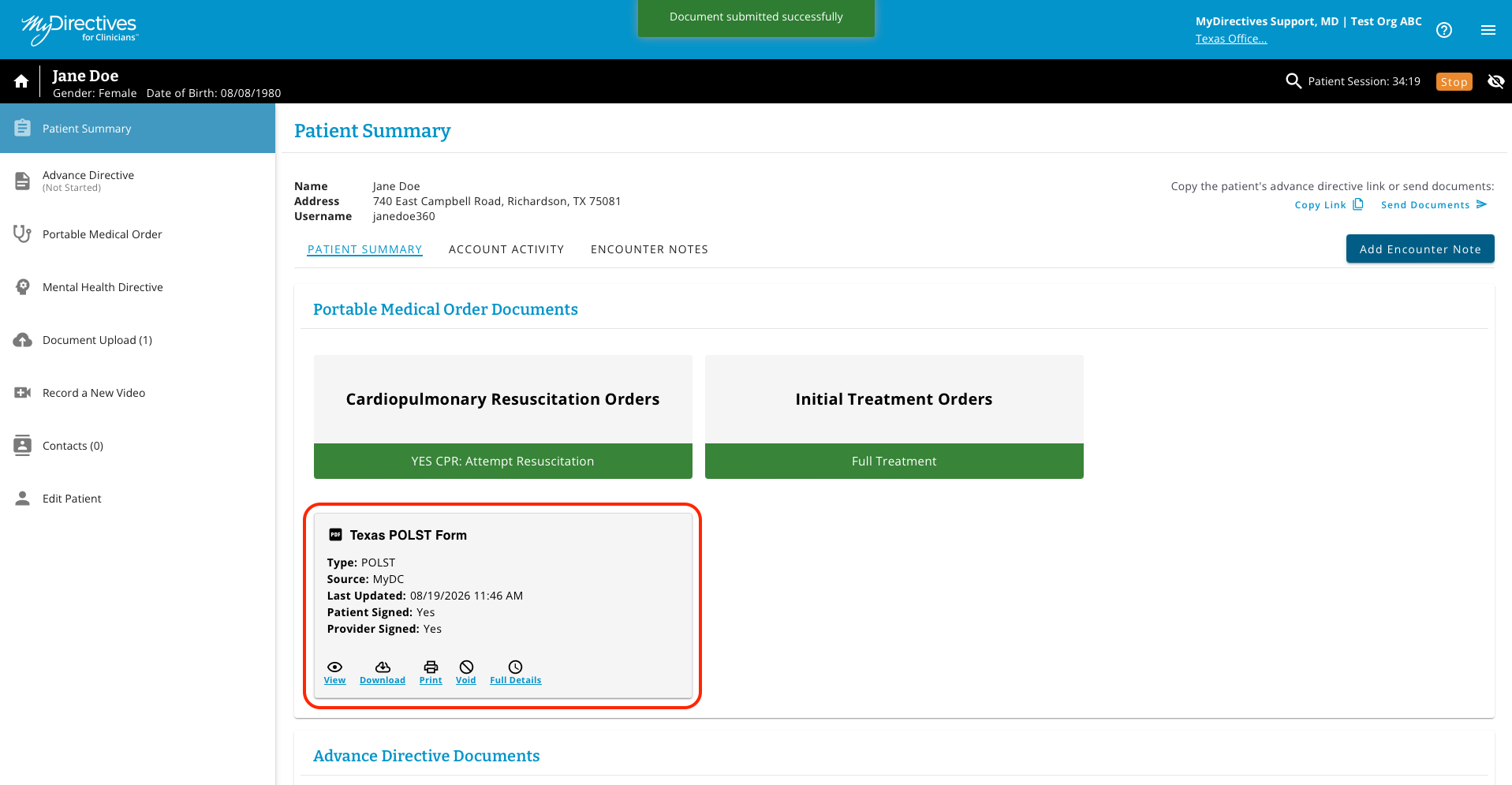
Before beginning a portable medical order, please ensure that your Office Location name matches the State of your Portable Medical Order.
A tile should appear in the left-hand navigation menu for your organization’s Portable Medical Order document type.
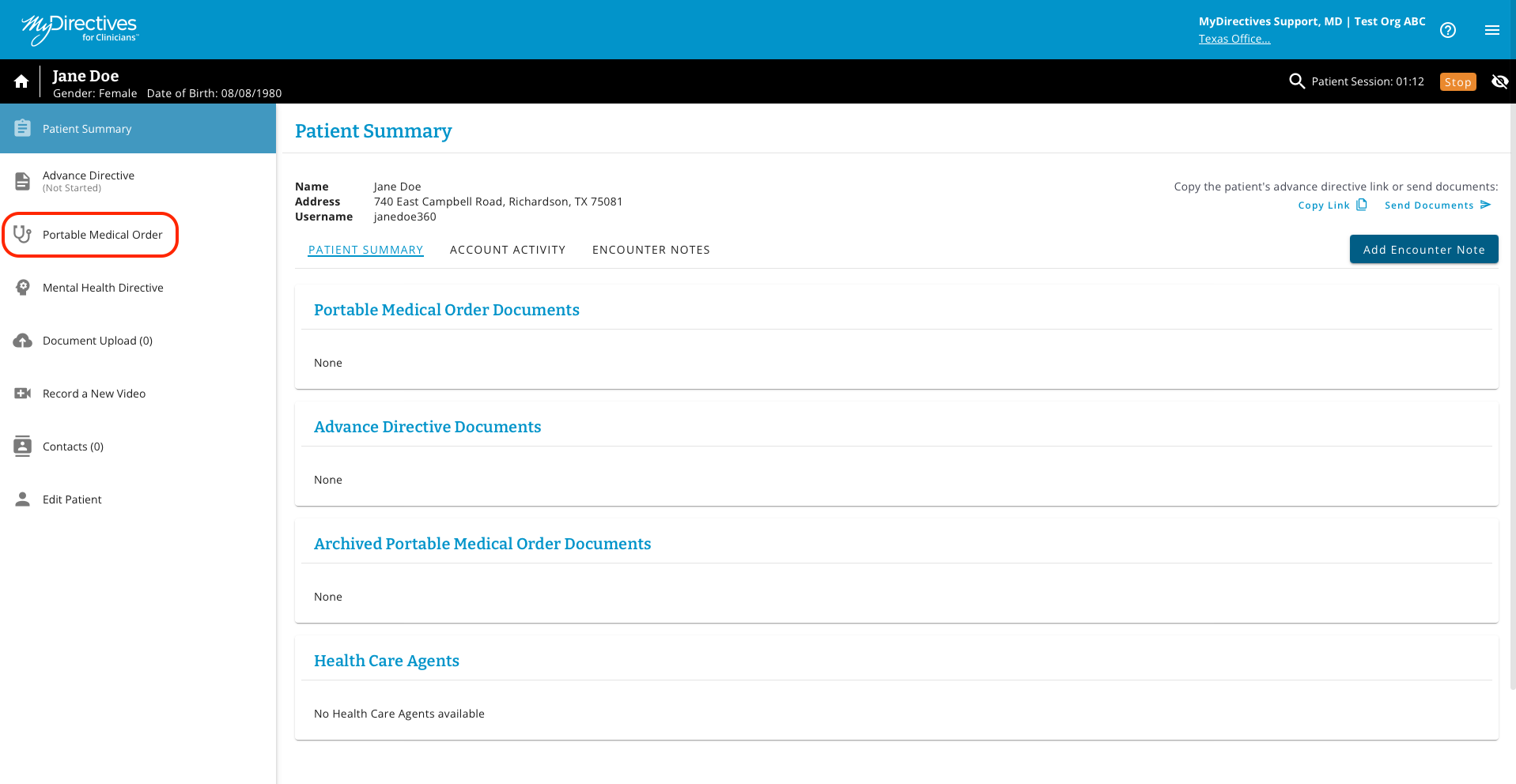
To create a new Portable Medical Order, select the document type from the dropdown menu and click the blue Select button.
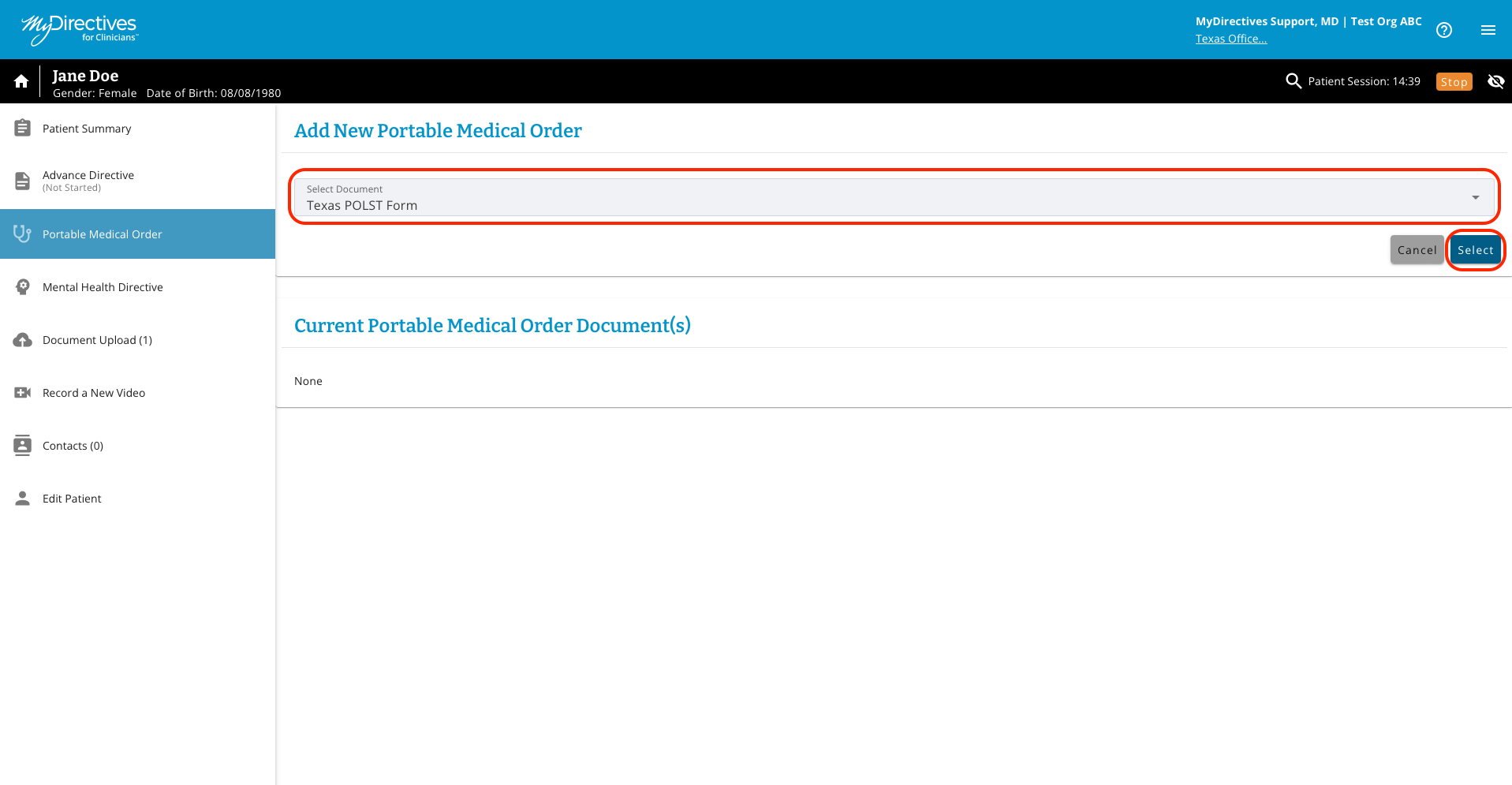
A new document survey will open. The example below is a state POLST form. Confirm the patient information is correct before proceeding to complete the form.
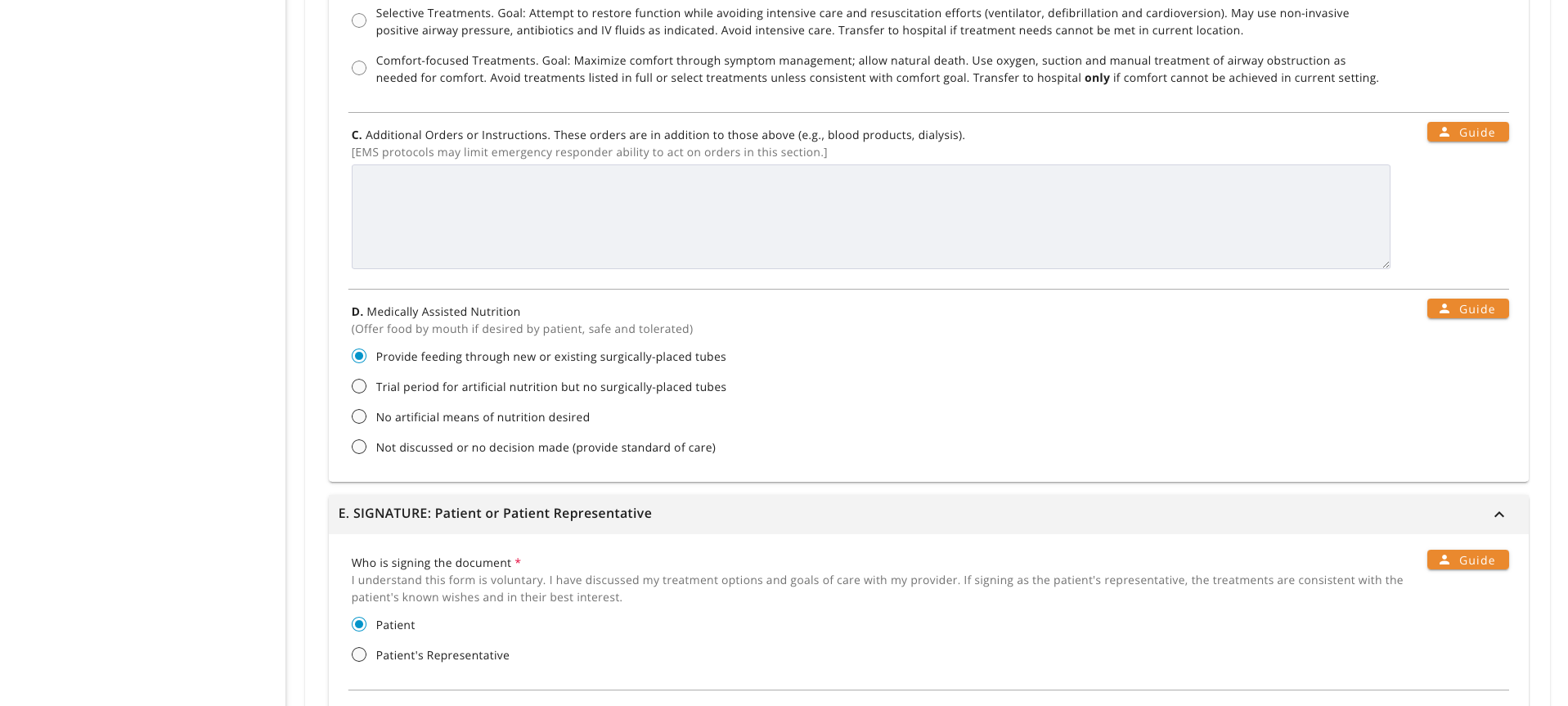
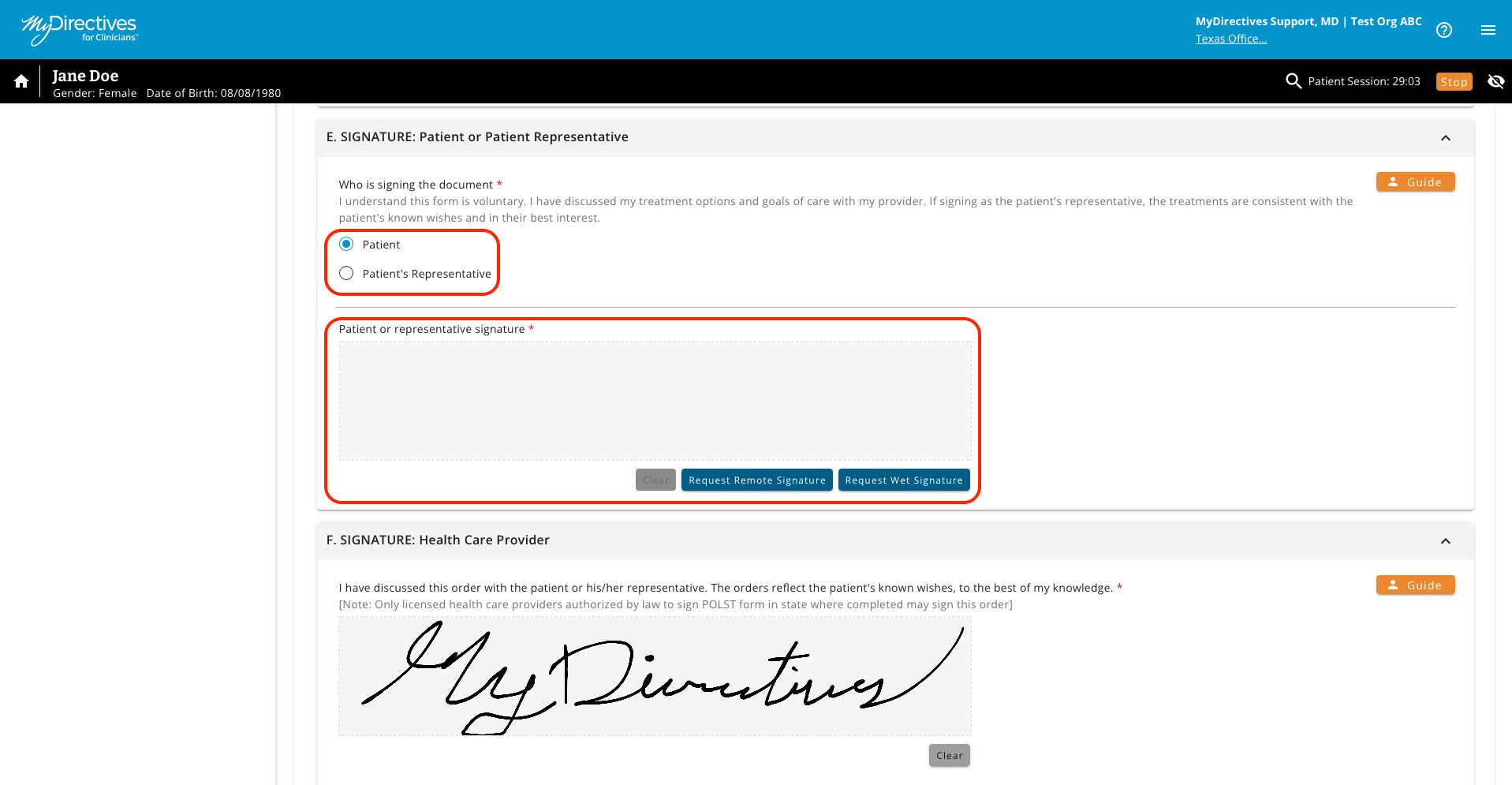
Once you have completed the document, your patient or representative’s signature will be required. If your patient is present, they will be able to sign on your device. If the patient or representative is not present, the provider can request a remote signature by clicking the Request a Remote Signature button. If this option is selected, the patient will receive an email or SMS message with a link to review and sign their document.
The provider signature field is pre-populated using the electronic signature uploaded during the MyDirectives for Clinicians account setup. After signing or requesting a remote signature, click Submit to save the document.
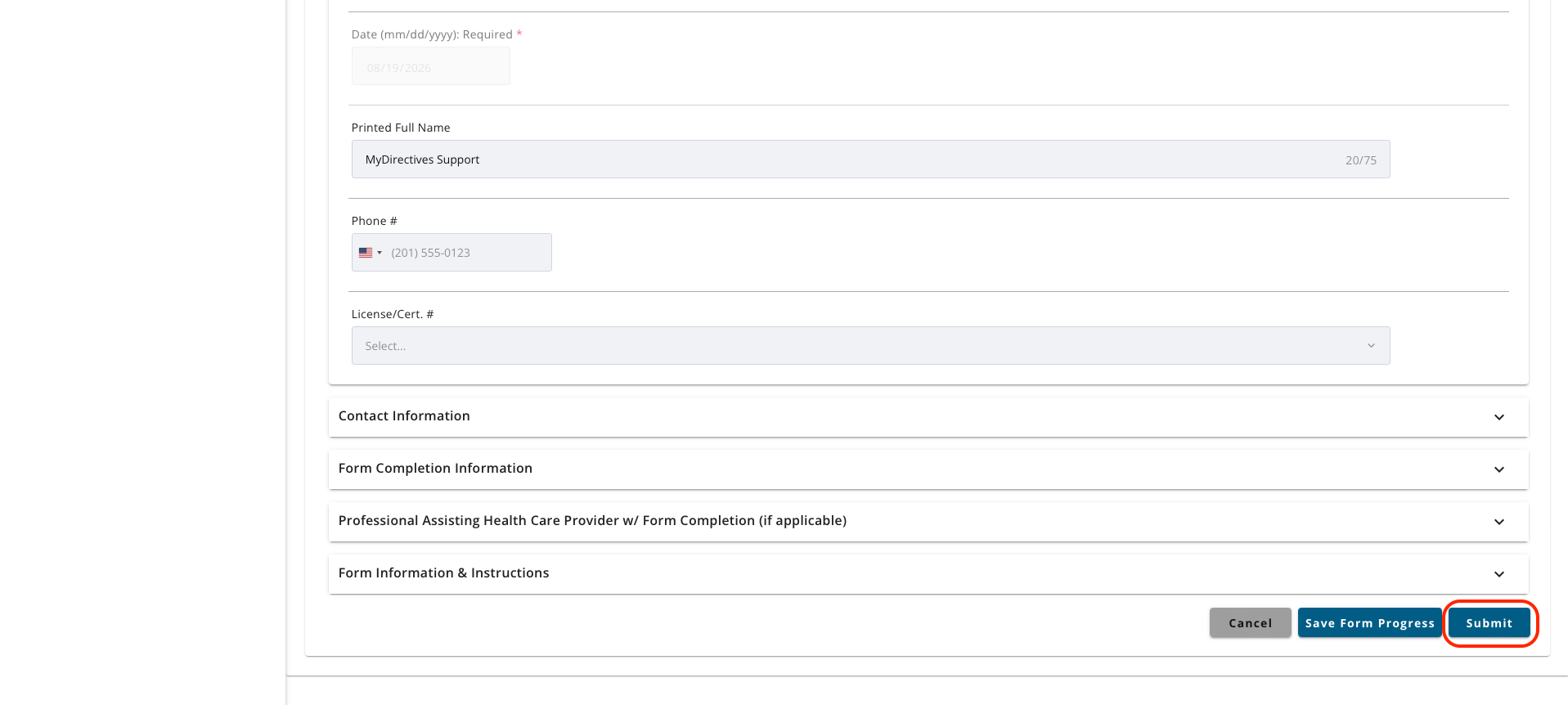
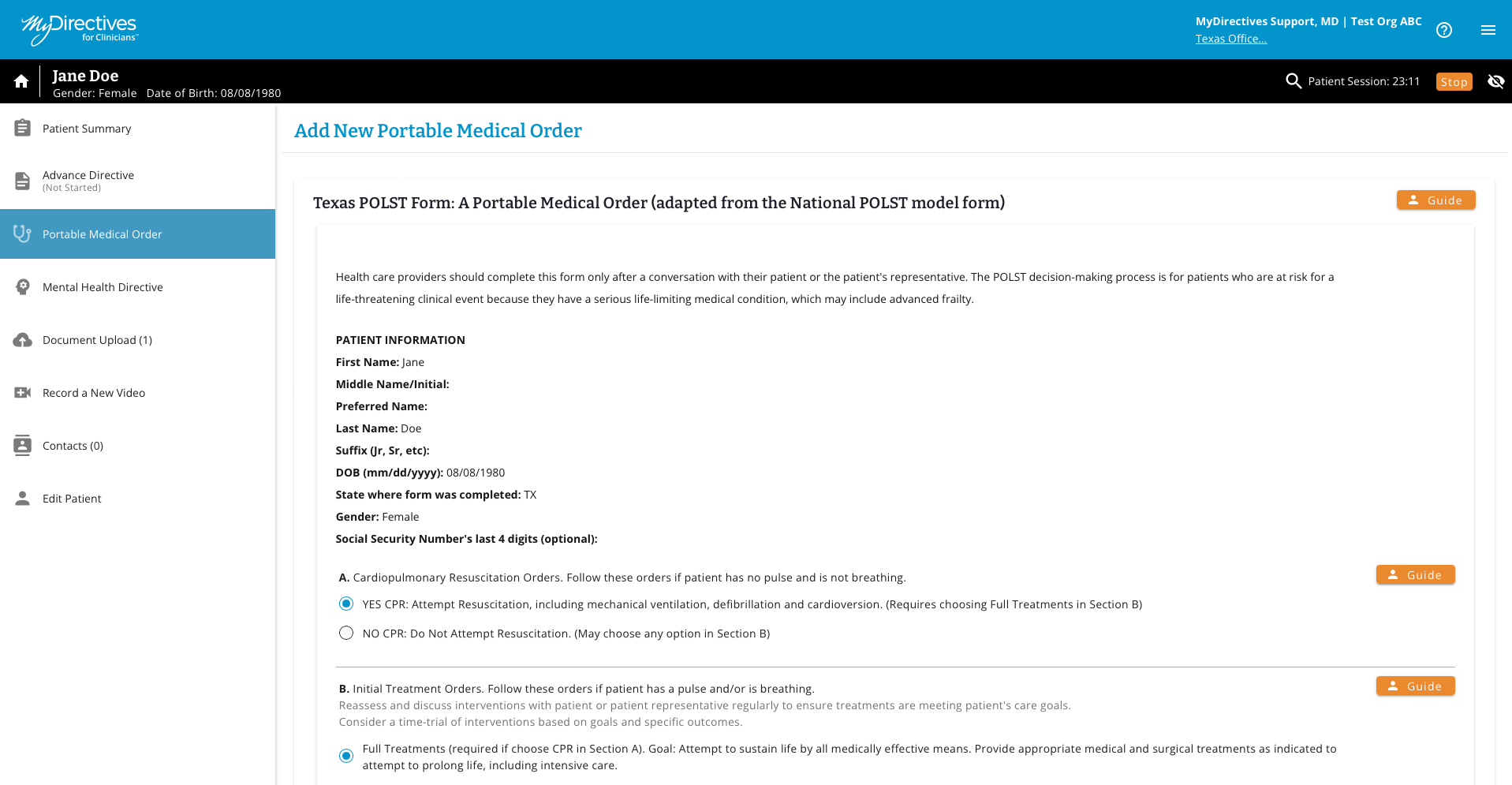
A green success message will appear once the document has been saved, and the page will refresh to display the patient summary page.
Note - If a remote signature has been requested, a message will appear indicating the document is pending a remote signature. Clicking this message allows a provider to send a reminder email to the patient if they have not signed the document in a timely manner.