
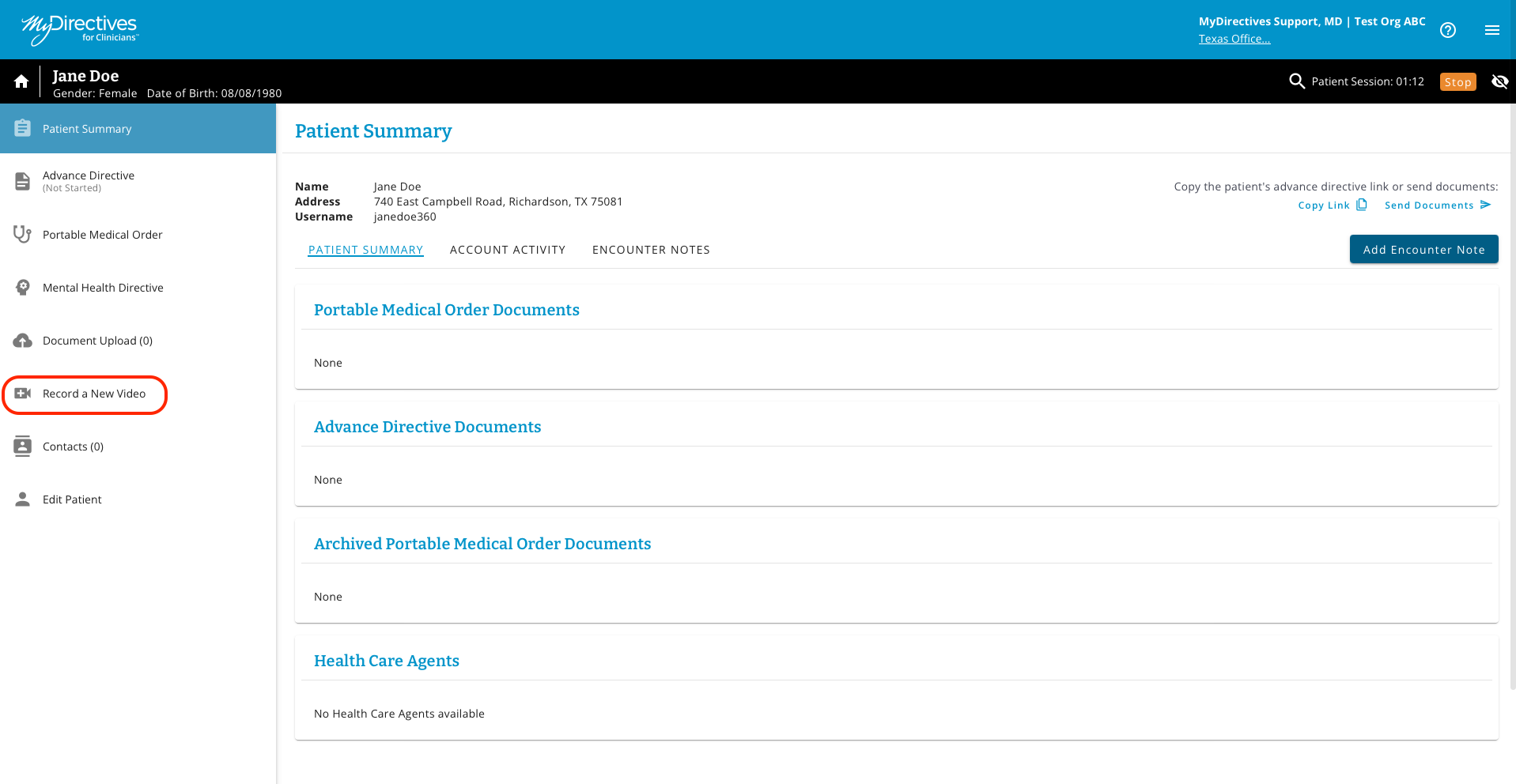
To record a patient’s medical preferences on video, click Record a New Video in the left-hand navigation menu.
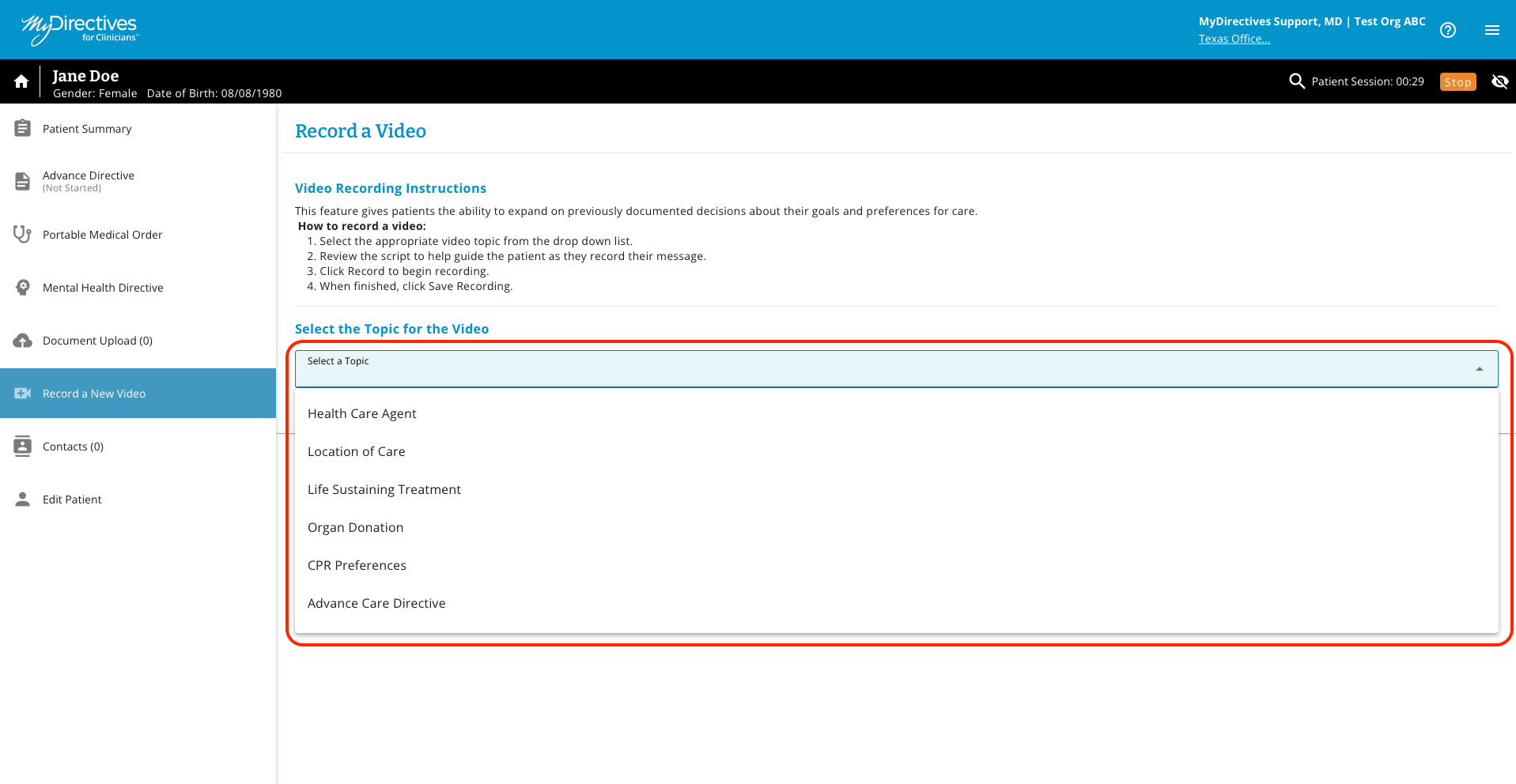
Here, you will be prompted to select the topic for the video that you will record with the patient.
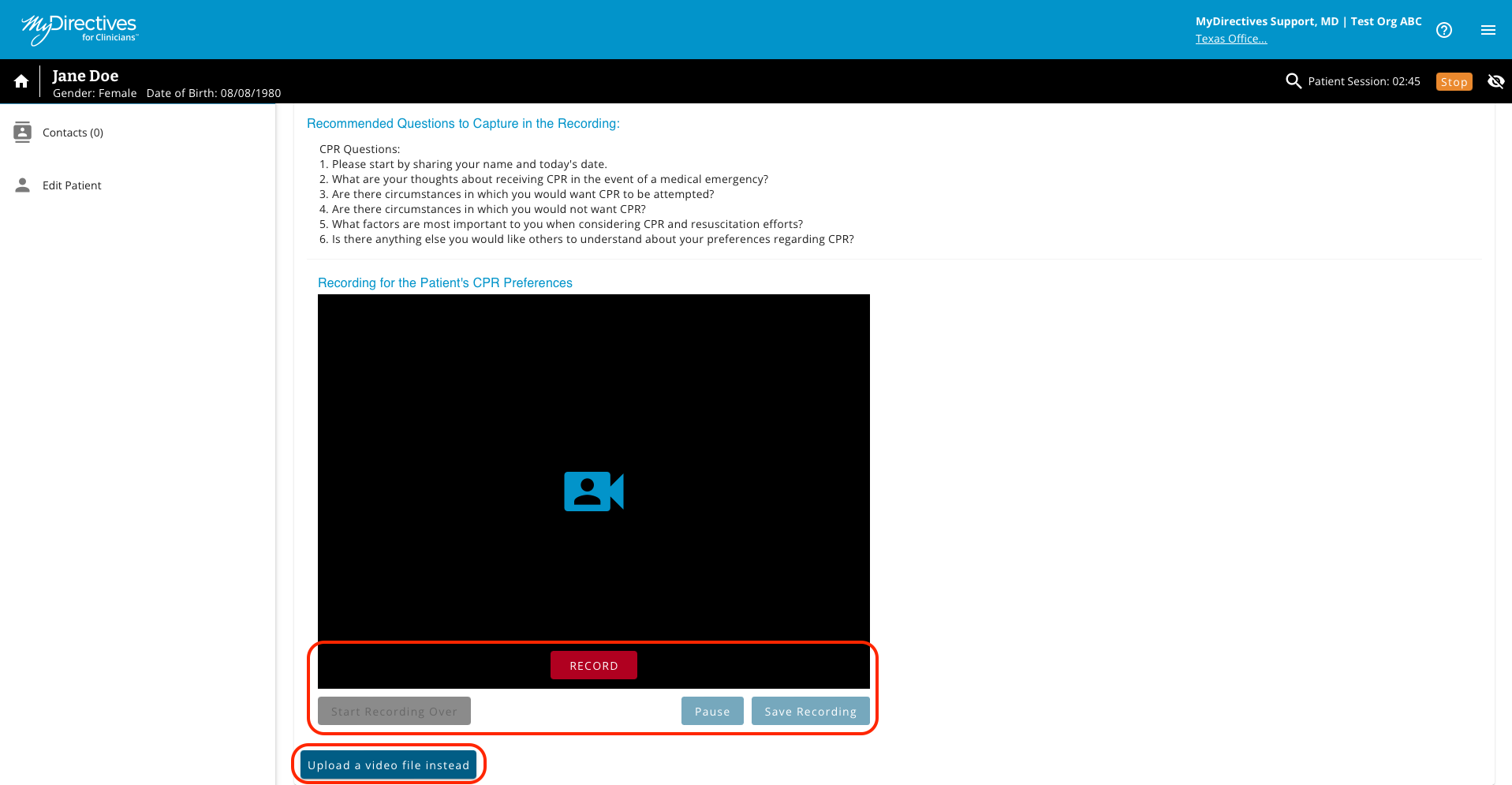
Use the Record, Pause, Start Recording Over buttons to control recording. If your patient already has a video to upload, click Upload a video file instead and upload the corresponding video.
Once the video has been recorded to the patient's satisfaction, click Save Recording to add the video to the patient’s account.
Recorded videos will appear in the Patient Summary and Document Upload sections.