
Provider generated documents, such as POLST or other medical orders, can be voided if the patient requests for them to be voided or if an updated document has been created and signed.
To void a document, click the Void icon (circle with a slash).
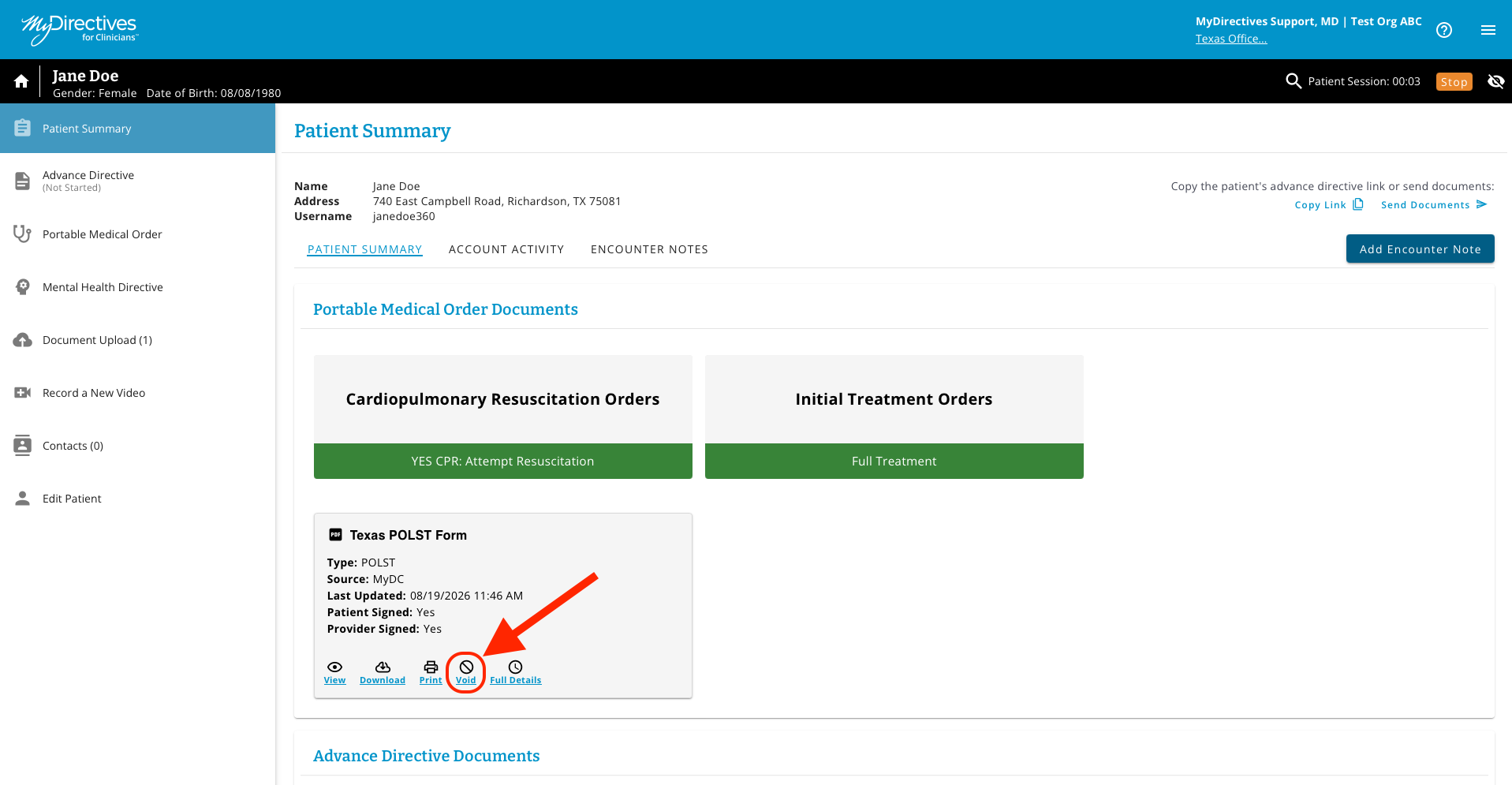
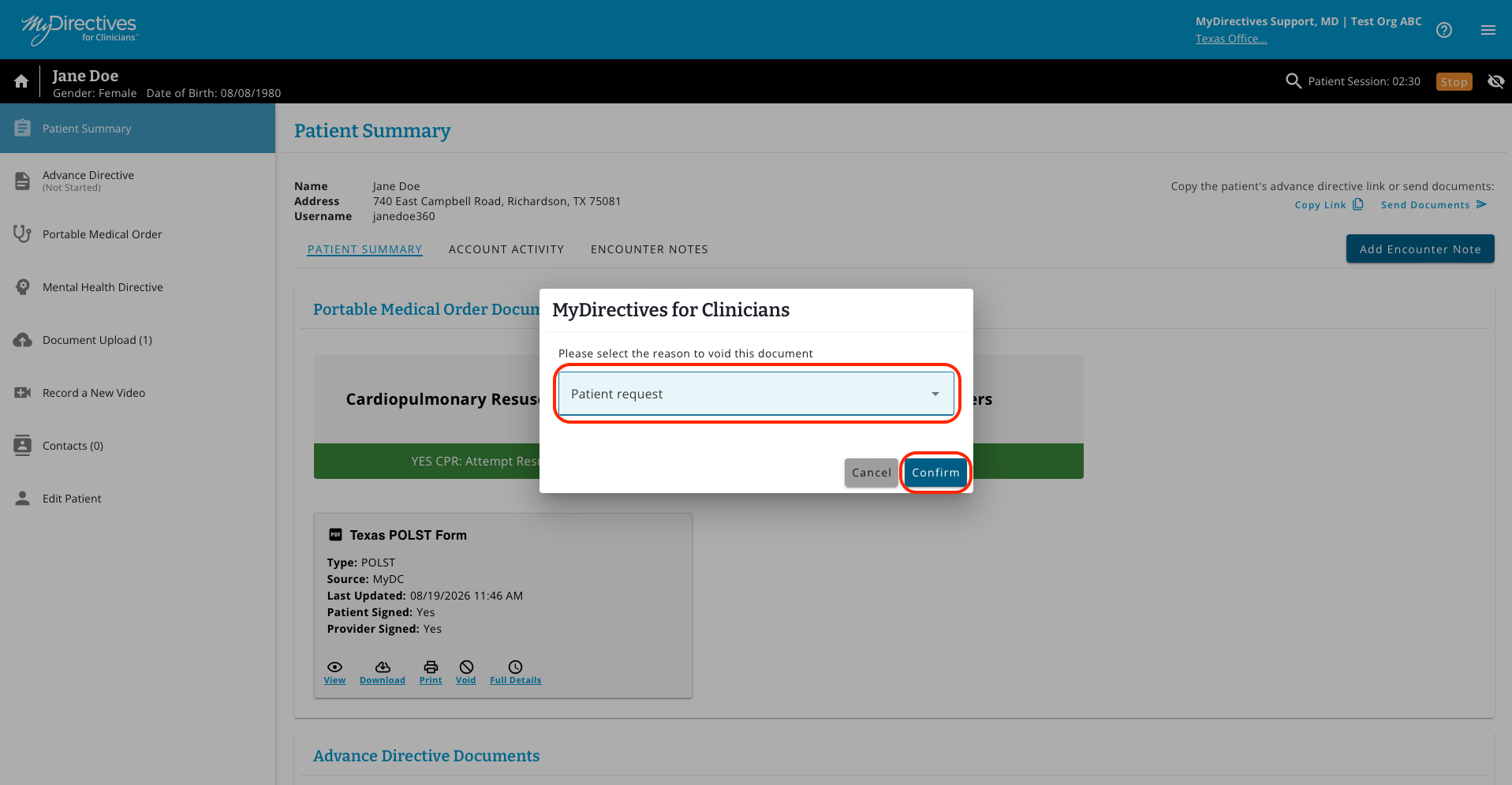
A pop up will display a dropdown menu where you will be required to select a reason for voiding the document. Click the appropriate reason and click Confirm to void the document. Click cancel if you mistakenly selected the Void icon instead of an adjacent icon.
The document will now appear in the Archived Portable Medical Order Documents section of the Patient Summary, and you will receive a confirmation banner at the top of your page.
Please note that a different set of reasons will display in the dropdown menu when voiding a DNR/DNAR/AND order that has been created outside of this application and uploaded by a patient or staff. In the sample shown below, you will notice the document has been marked as “uploaded.”
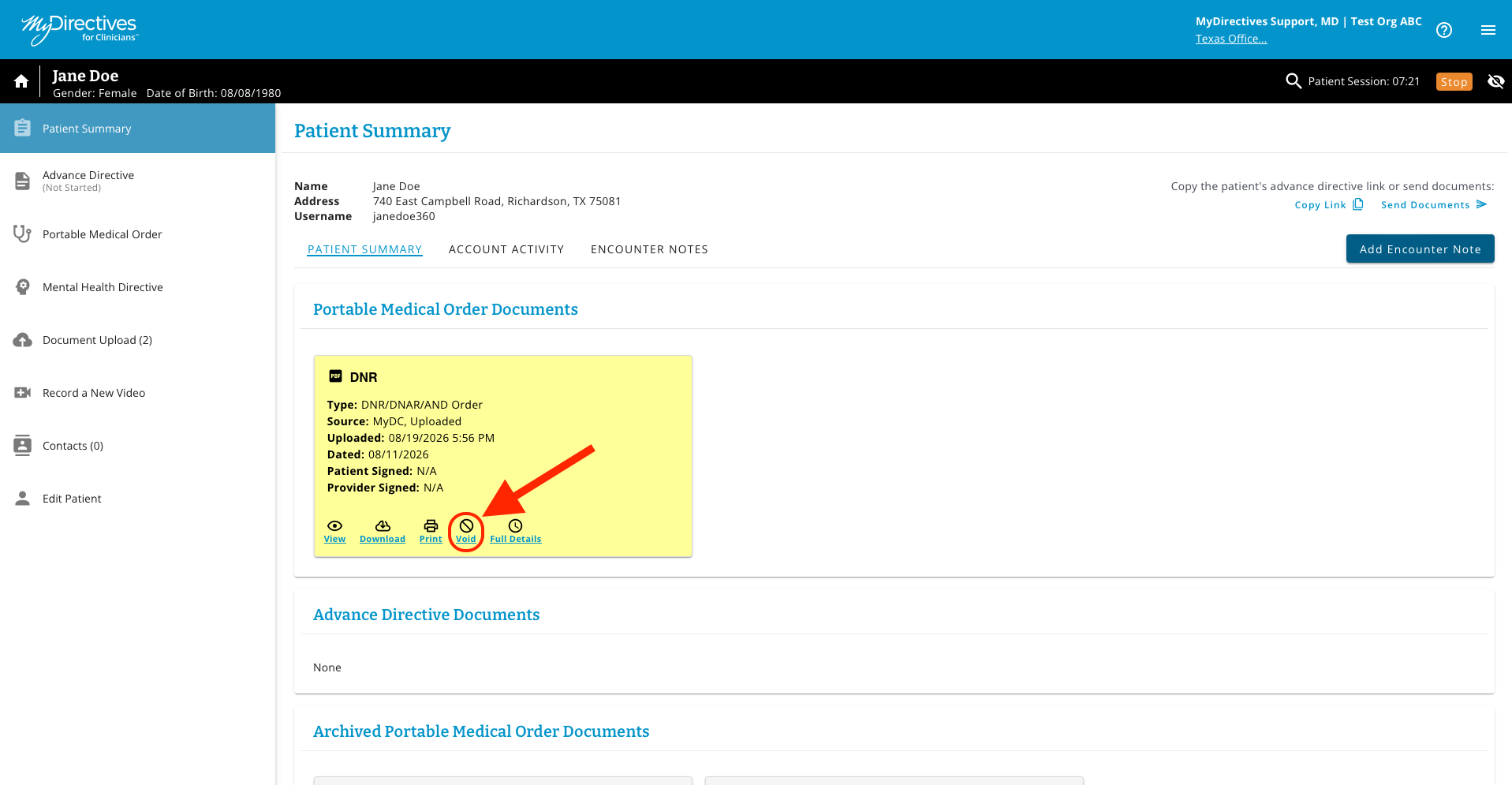
To void the document, select the appropriate reason and then click Confirm to void the document. Click cancel if you wish to keep the document.
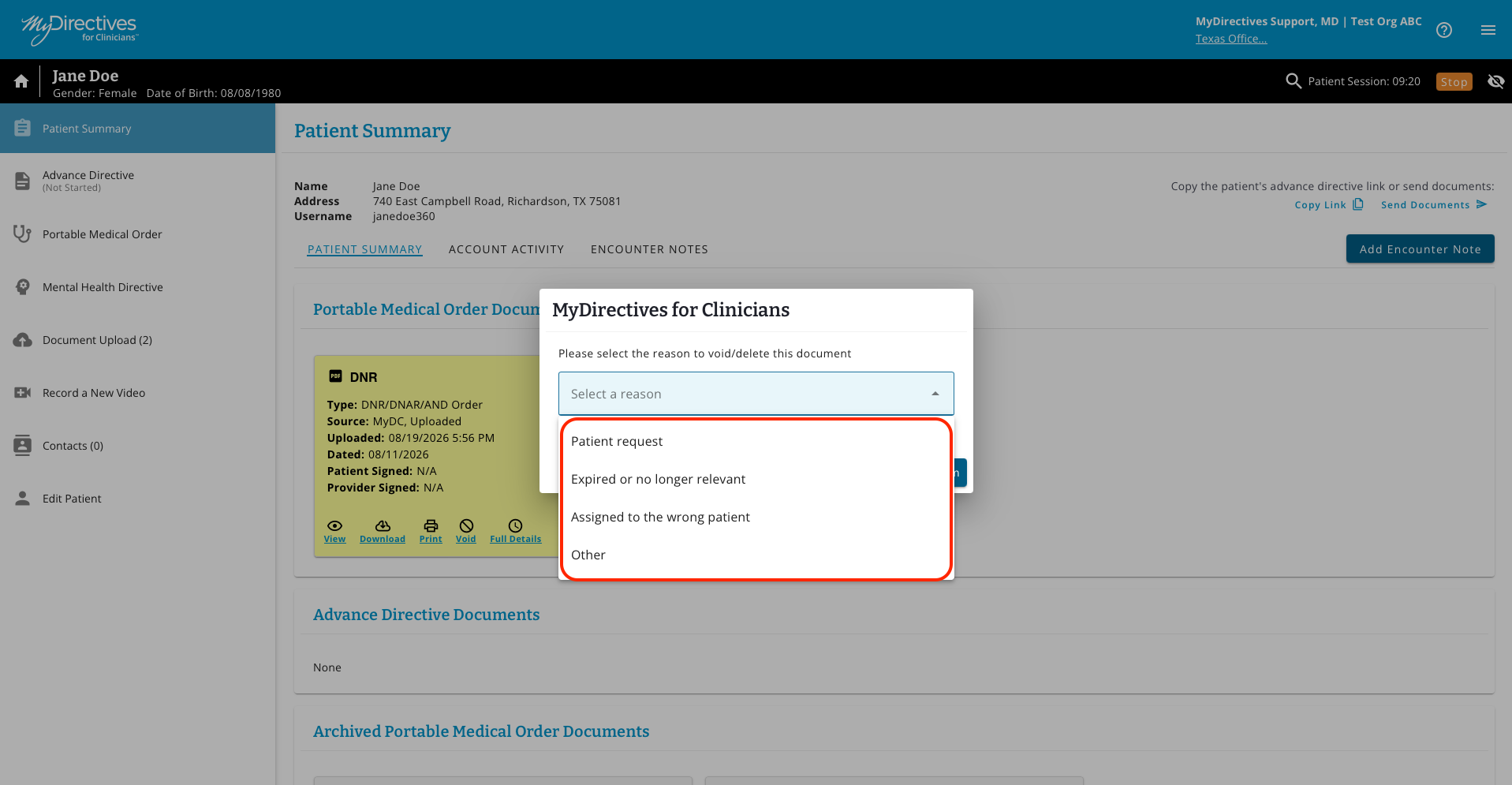
NOTE: Selecting either “Assigned to the Wrong Patient” or “Other” as a reason will result in permanent deletion of the document. It will not be saved as a voided document and will not appear in the Archived Portable Medical Order Documents section of the Patient Summary page if either of these reasons are assigned.
If one of these reasons have been selected, a red message will appear indicating that the document will be permanently deleted if the selection is confirmed and that the document will no longer be accessible. Please make sure the correct reason for voiding the document is selected before confirming.
The voided document will now appear in the Archived Portable Medical Order Documents section of the Patient Summary page, along with any other voided documents. Voided documents are all still viewable (eye icon) and can be downloaded (cloud with down arrow icon).