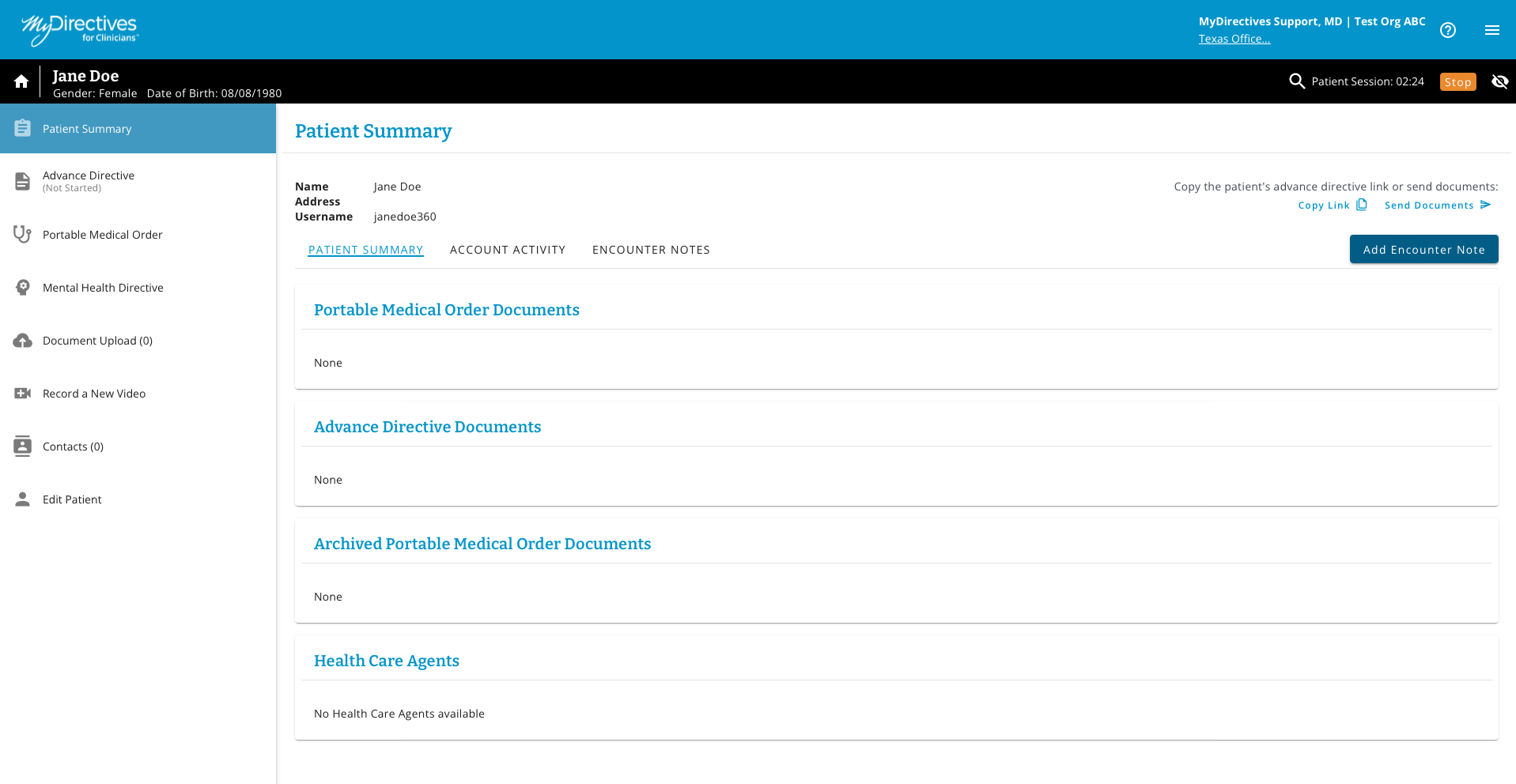
In many cases, patients will not already have a MyDirectives account if you are helping facilitate a document for the first time. This requires a search for your patient before you can create a new account for them. To search for a patient, click the Search Patient from your Dashboard to begin your search.
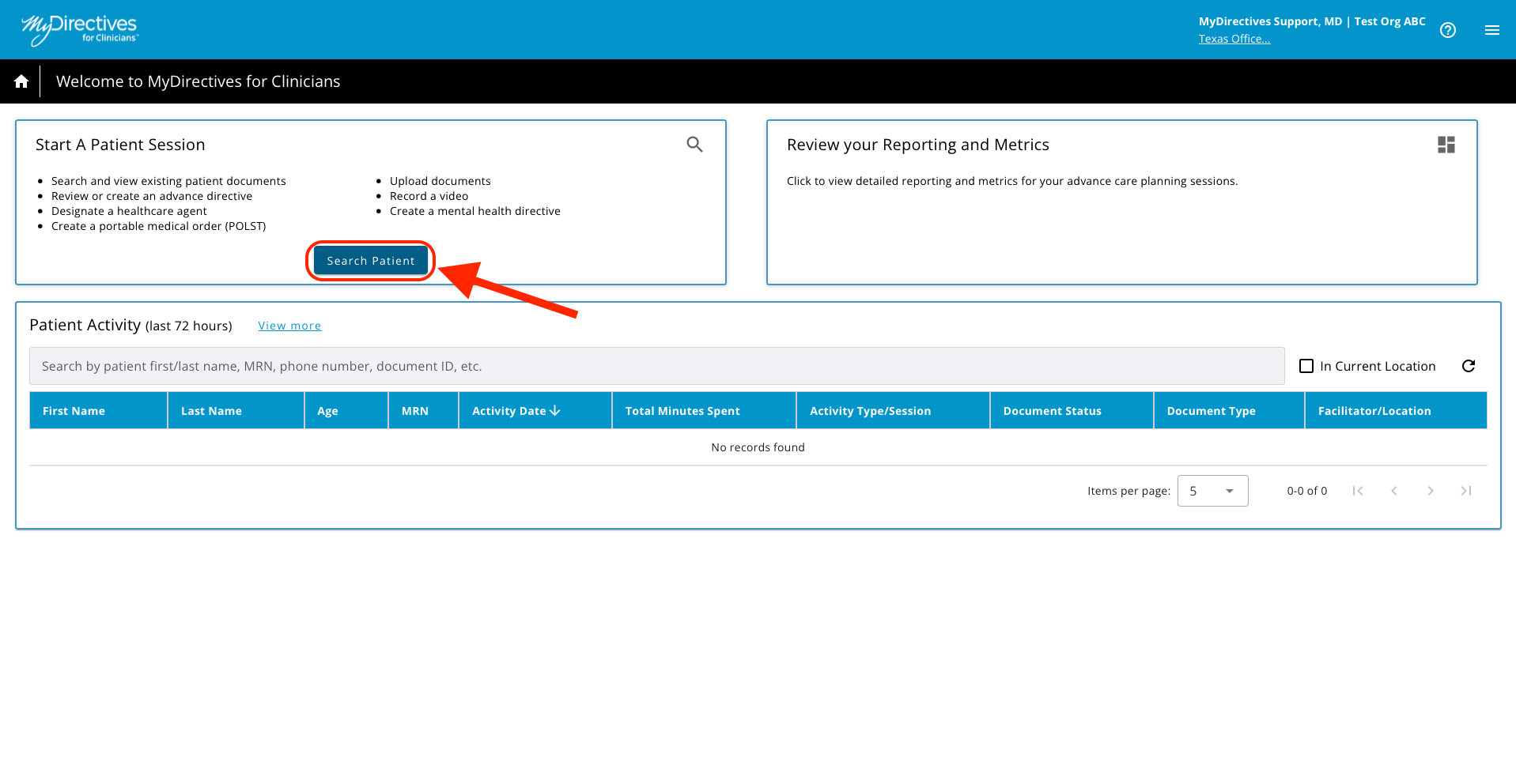
You will need to complete all Patient Search fields to look for your patient in the system. Once the information has been entered, click the blue Search button.
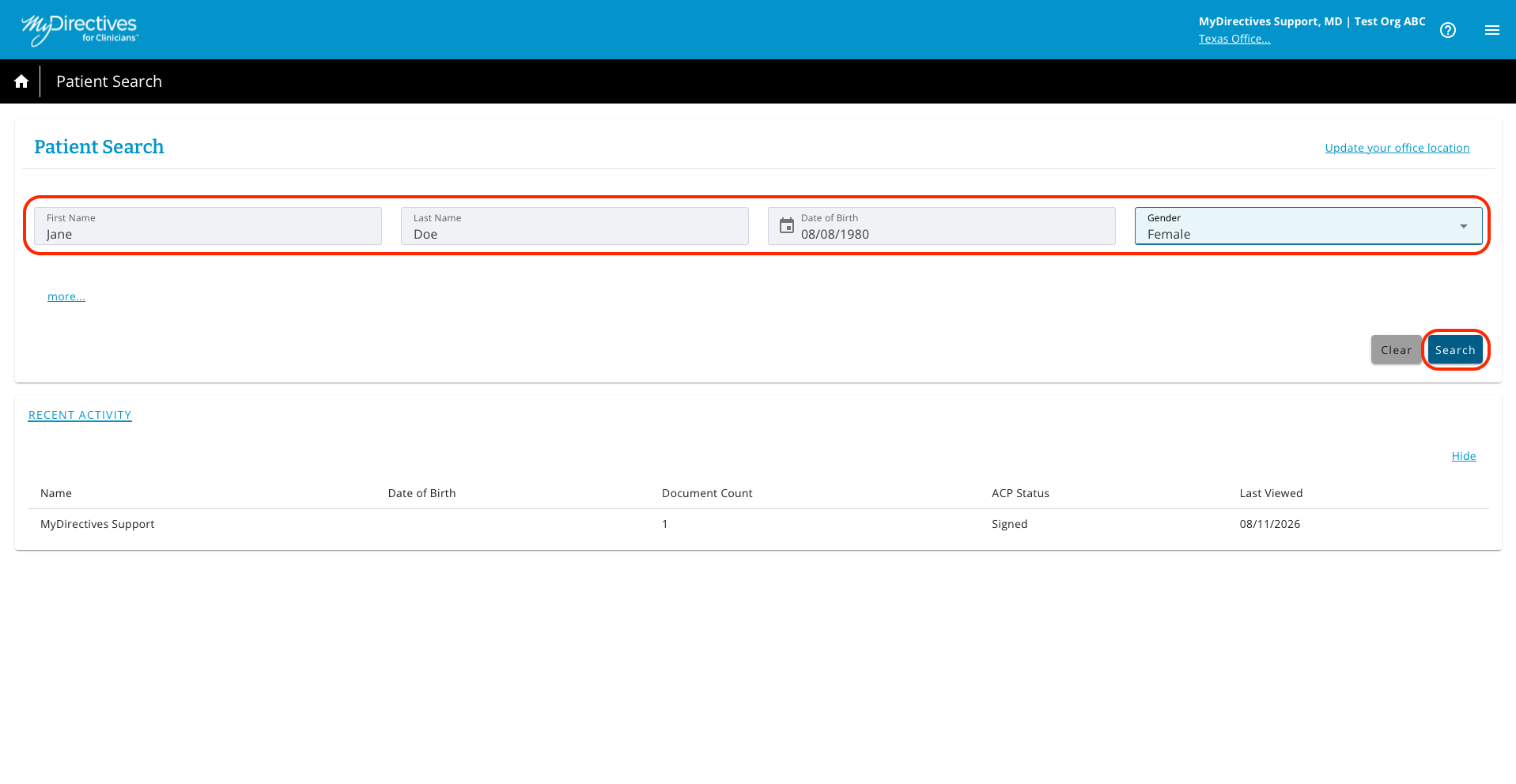
If your patient does not show as a match for any current accounts, you will be prompted to create a new account. Click the blue Create New Patient button to get started.
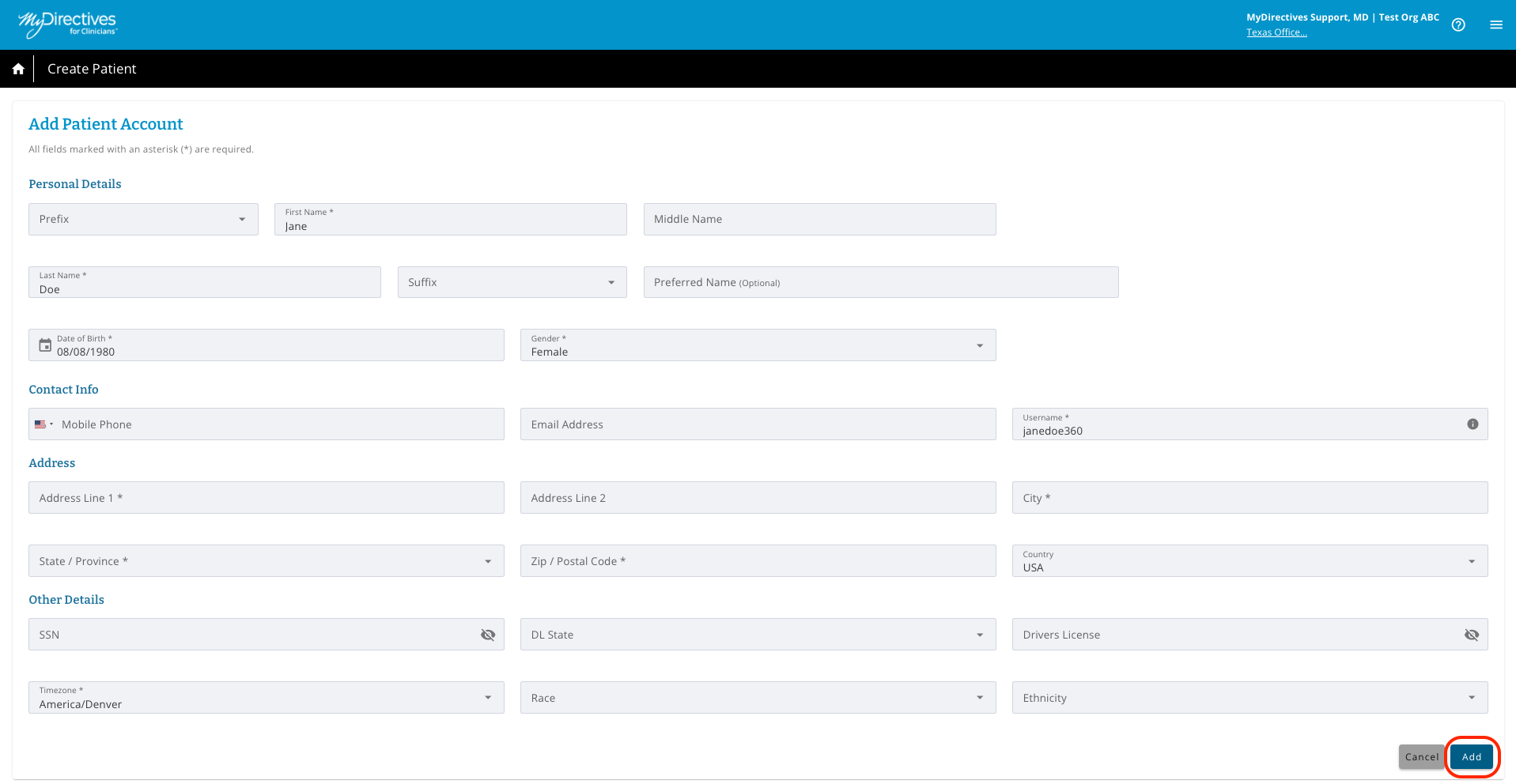
In the Add Patient Account section, you will need to complete all the required fields * before clicking the blue Add button.
Note - Patient usernames are auto-generated. You can change this for your patient if needed.
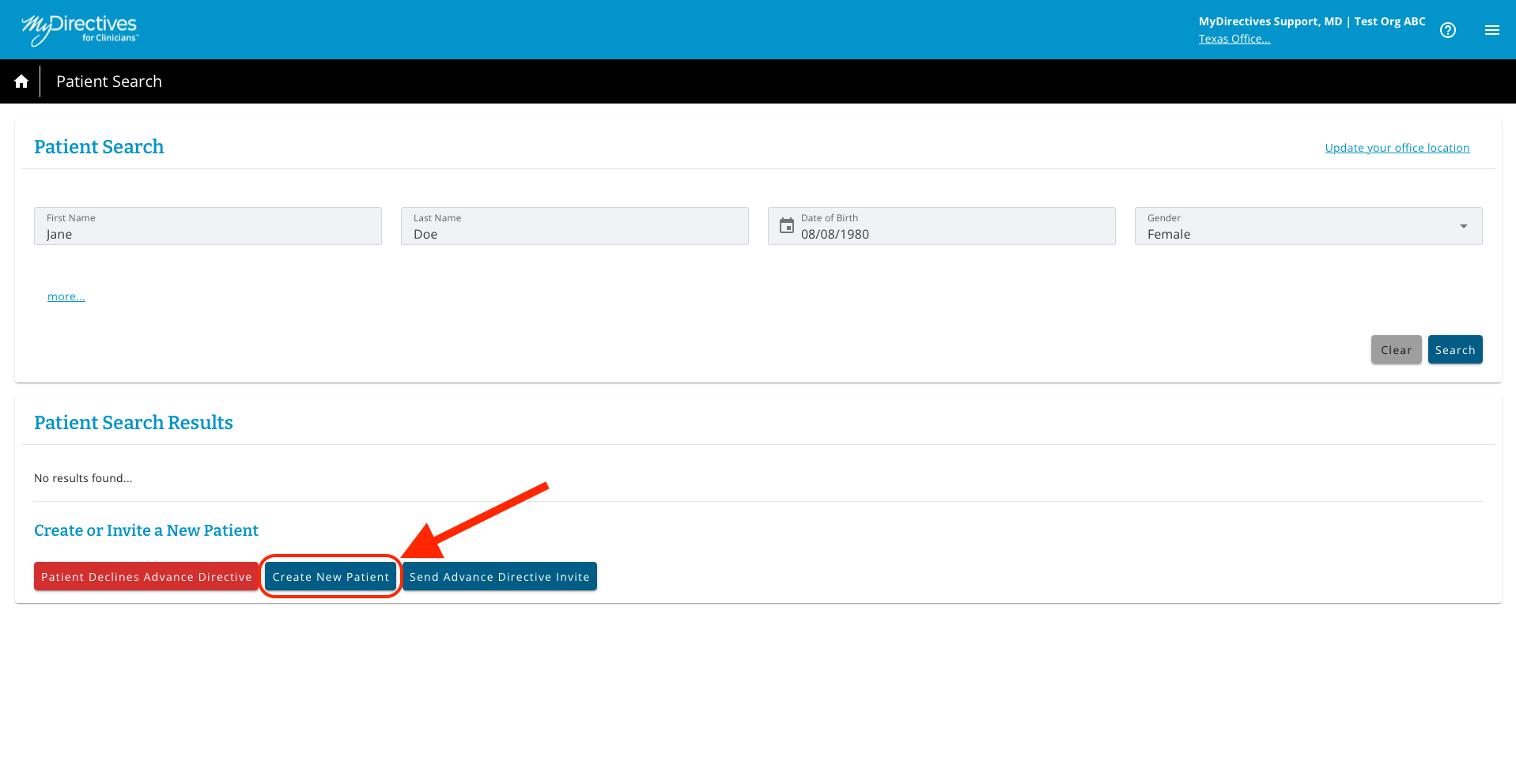
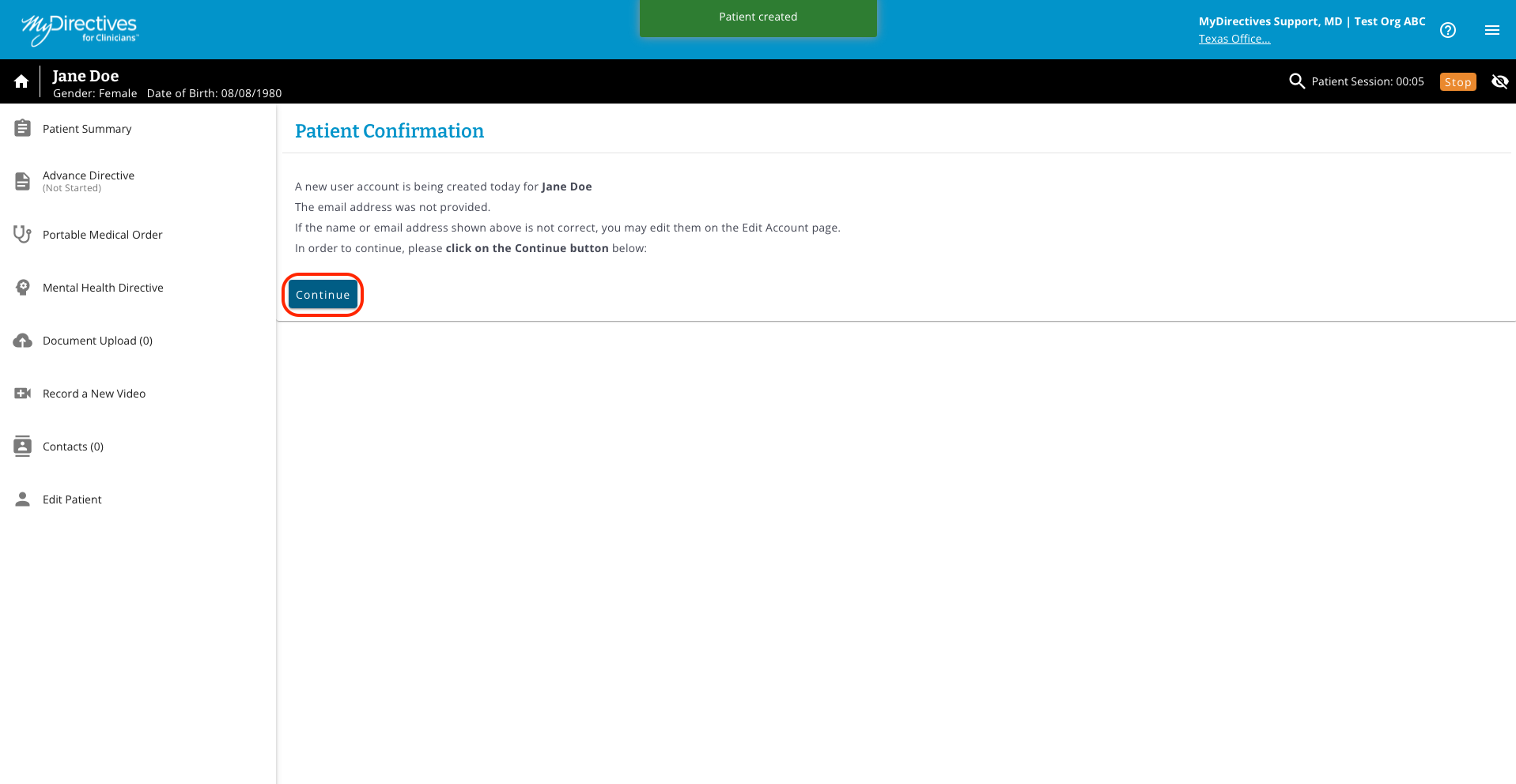
Once you have successfully created this new patient account, you will see a Patient Confirmation page. Click the blue Continue button to be taken to the patient summary.
The Patient Summary page will appear as shown below. From this page, you may select any of the menu items in the left-hand navigation panel to add a new document.