
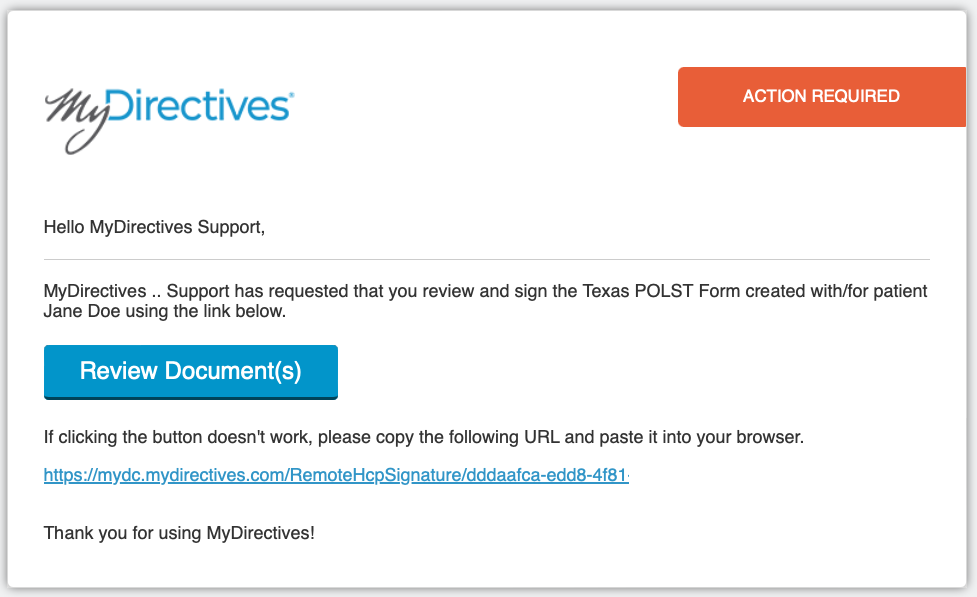
When you have been sent a remote signature request, you will receive an email notification that there is action required on your part. Click the blue Review Documents button to review and sign the document.
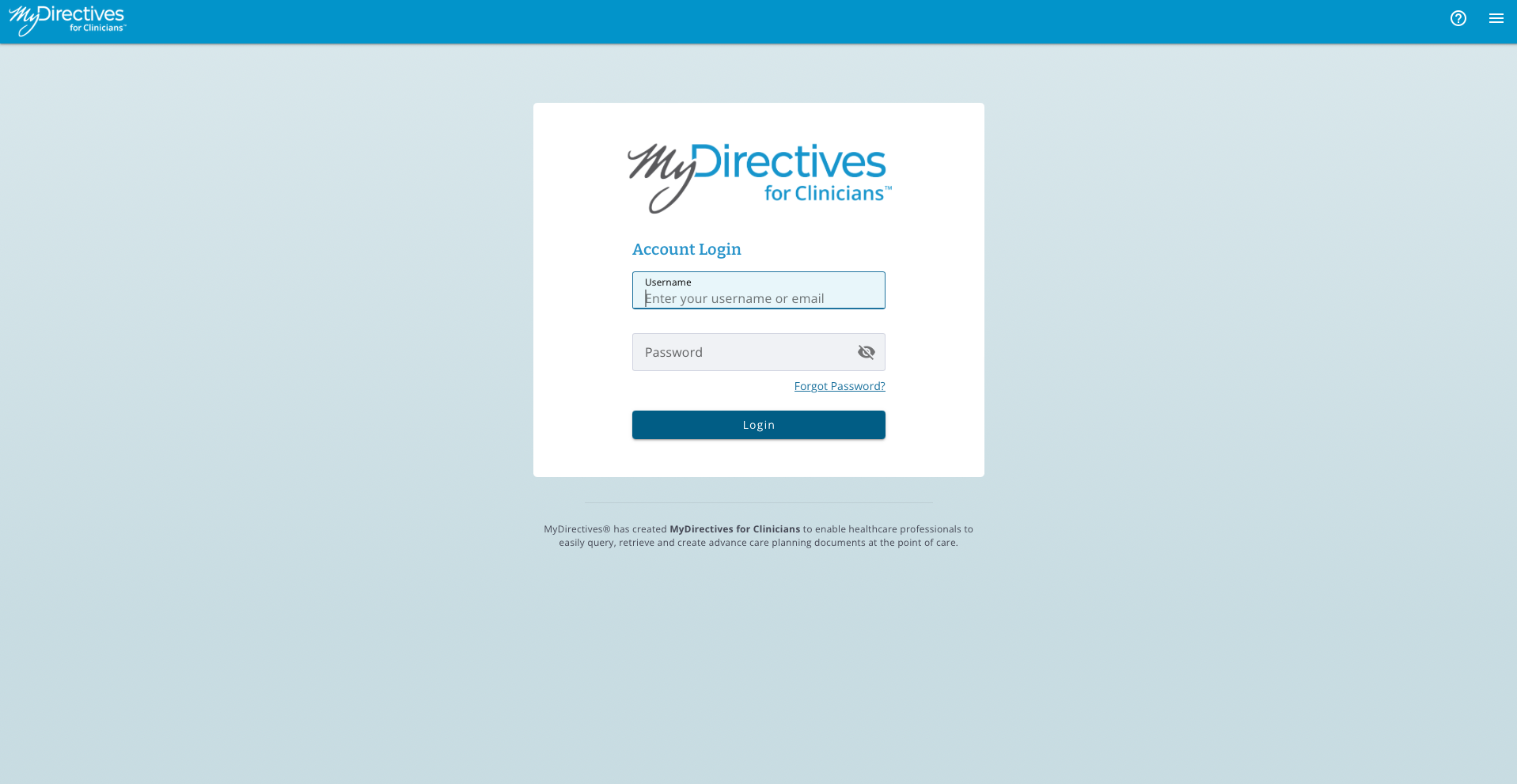
The link will take you to the MyDirectives for Clinicians website. Enter your credentials and click the blue Login button to access document. You will be taken directly into the patient’s account.
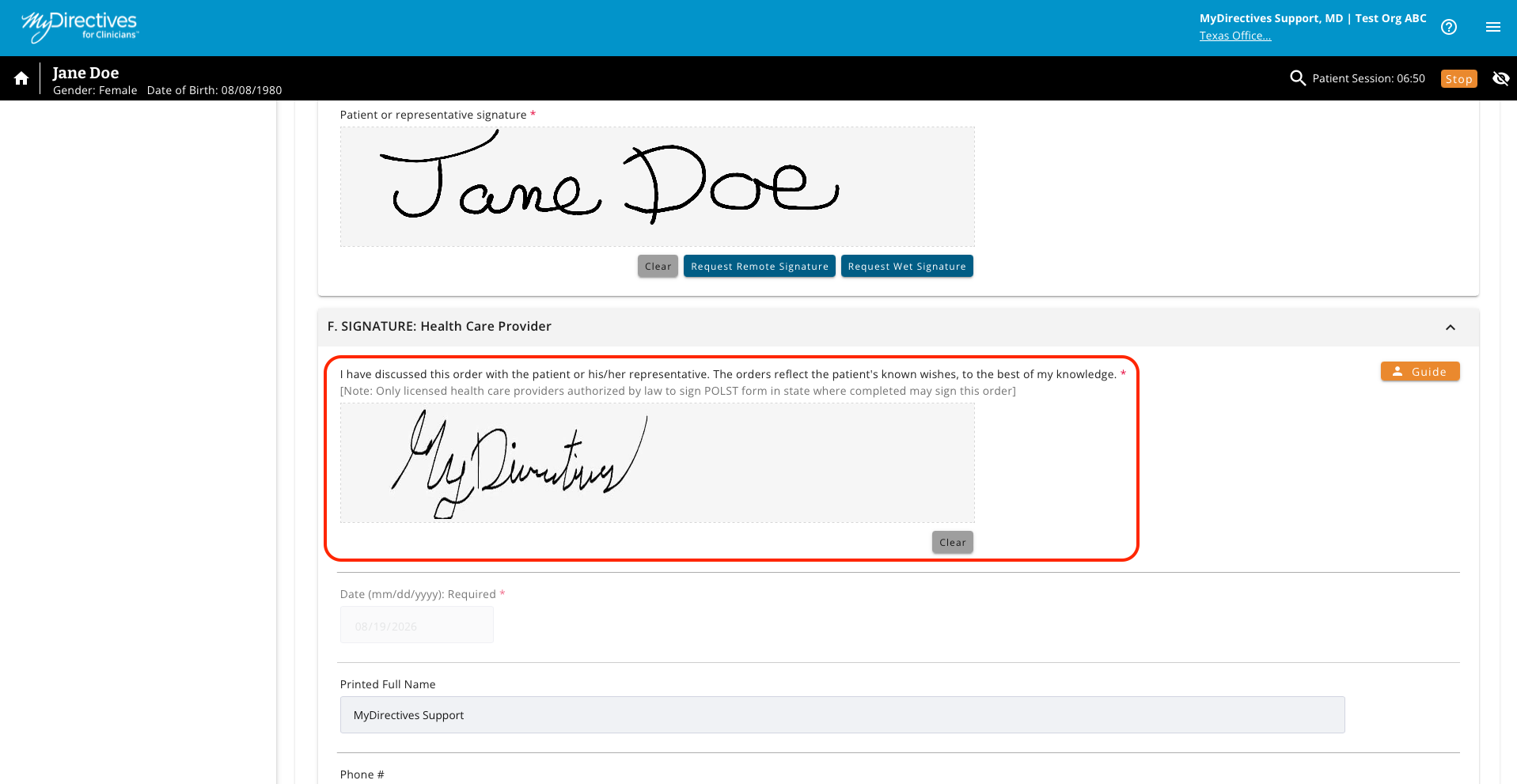
Once you are signed in, you be taken directly to the document that needs your signature. After you have reviewed the document, you will see the signature block near the bottom of the page. This box should already be populated with the signature you saved electronically when you created your MyDirectives for Clinicians account.
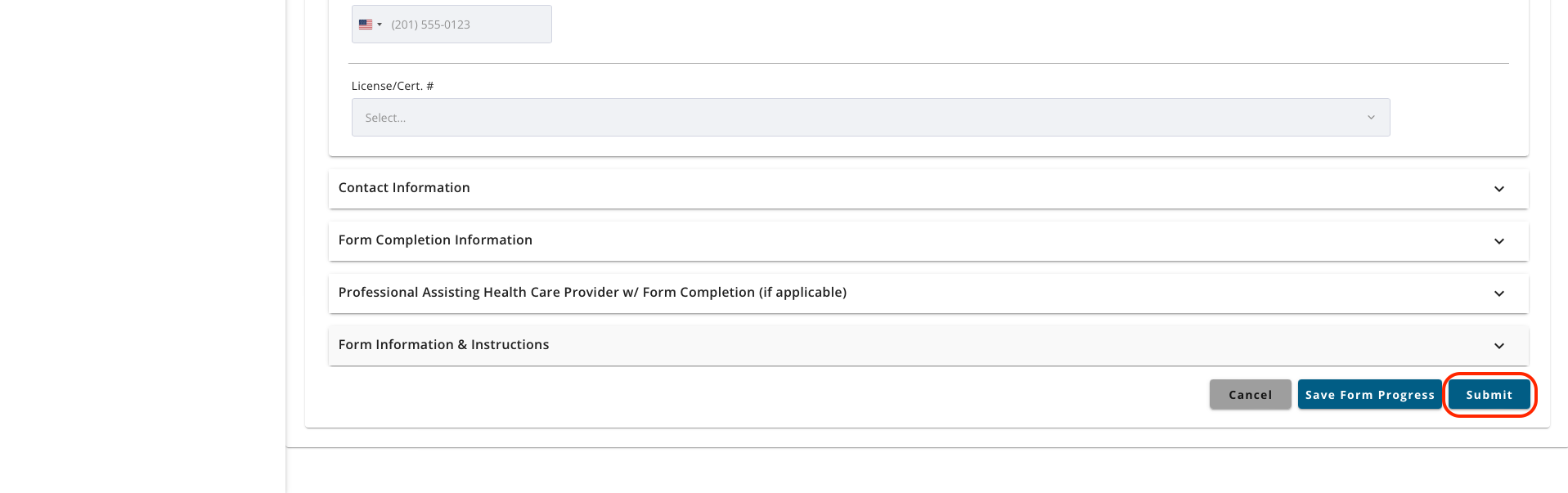
You will need to submit the document to update it with your saved signature. Scroll to the bottom of the page and click the blue Submit button.
If the document has been successfully submitted, a green message will briefly appear at the top of the page, which will now display the Document List tiles showing the new document.